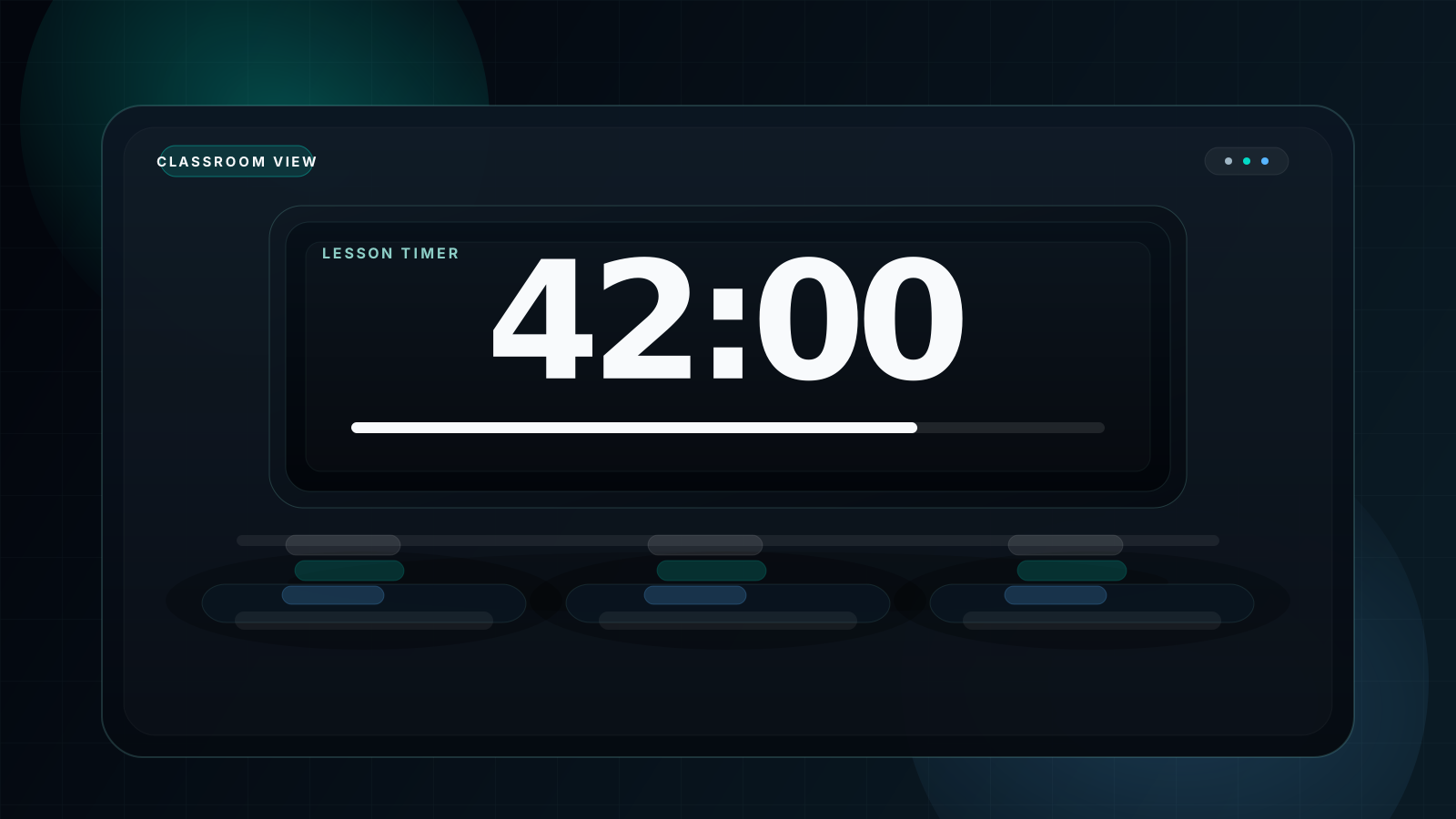
A classroom timer is never just for the teacher. It is a shared signal that tells an entire room what happens next, how long students have left, and when an activity actually ends. That is why fullscreen matters. A small timer in a browser corner does not solve classroom management. A large, readable, no-distraction countdown does.
Why Classrooms Need a Fullscreen Timer
Teachers do not need more software overhead during live instruction. They need a fullscreen countdown timer that opens fast, looks clean on a projector, and stays readable without constant explanation. When the whole class can see the same clock, timing stops being a private teacher task and becomes part of the classroom routine.
1. Students cannot read tiny timers
Phone timers and small desktop widgets force students to ask how much time is left. Fullscreen projection solves that immediately because the countdown is visible from every seat.
2. Ad-heavy tools break classroom focus
Many free timers clutter the screen with side panels, banners, or irrelevant visuals. A classroom timer has to stay visually safe and quiet from bell to bell.
3. Tool switching burns teaching minutes
Jumping between slides, attendance software, and a weak timer kills flow. Fullscreen launch plus keyboard controls keeps the teacher on the lesson instead of the interface.
How a Fullscreen Timer Improves Classroom Management
The real value of a classroom timer is not cosmetic. It improves pacing, expectations, and perceived fairness. A visible countdown creates one reference point for the entire room, which is why teachers often keep it on screen during transitions, reading blocks, quick writes, and assessments.
① Time awareness
Students learn to pace themselves when remaining time is always visible instead of announced only at the end.
② Task focus
A clear deadline reduces drift. Students know the work block is real, which naturally raises attention and urgency.
③ Smoother transitions
The last two minutes of a visible countdown give students mental runway to wrap up rather than being stopped cold.
④ Fair assessment
Everyone sees the same clock. That lowers disputes about timing during quizzes, speaking turns, and written exams.
⑤ Better participation
Timed discussion and brainstorm rounds feel more game-like, which helps students commit to the activity instead of waiting it out.
What Makes the Best Classroom Fullscreen Timer?
Teachers do not need a flashy timer. They need a reliable one. The best classroom timer combines large digits, fast launch, zero clutter, and theme control so the same tool works in a bright classroom monitor setup and on a dimmer projector wall. If you want the theory behind dark projection, the companion dark mode countdown timer guide goes deeper on why darker themes usually win indoors.
True fullscreen display
The timer should fill the screen cleanly, without browser chrome or layout junk stealing attention from the digits.
Zero ad clutter
Anything that looks like a sidebar, banner, or unrelated button competes with the lesson and should stay off the classroom display.
Instant start
Teachers need to open a timer in seconds, not sign in, install software, or hunt through settings before the activity begins.
Sound when useful
A bell at the end of work time is useful. Having to stare at the countdown the whole time is not.
Light and dark themes
Projectors usually want dark backgrounds. Bright monitor setups may prefer light mode. That is exactly why the white vs black screen timer comparison matters.
Keyboard-first control
Teachers should be able to start, pause, reset, or go fullscreen from the keyboard without walking back to the laptop.
| Timer option | What usually goes wrong in class | Best use case | Verdict |
|---|---|---|---|
| Phone timer | Only the teacher can see it, which guarantees interruptions and repeated time-check questions. | Personal prep only | Too small |
| Ad-heavy web timer | Visual clutter and questionable content make it a poor fit for projection in front of students. | Low-stakes solo use | Avoid for class |
| App-only timer | Installs and account setup add friction, and device flexibility is limited across teacher hardware. | Single-device workflows | Too rigid |
| FullscreenCountdownTimer.com | Large digits, fullscreen control, dark or light themes, sound, and browser-based access all fit classroom reality. | Projectors, smartboards, tablets, and online teaching | Best fit |
8 Classroom Use Cases with Recommended Times
The same timer can handle very different teaching moments. What changes is not the tool, but the duration, the theme, and how visible you want the countdown to feel in the room. For presentation-heavy lessons, the companion guide on full screen timer for presentations covers stage-style readability in more detail.
Exams and quizzes
Use a dark fullscreen timer so every student can track the same remaining time without repeated verbal reminders.
Group discussion
Start the countdown before you explain the final constraint. The visible clock creates urgency and improves participation quickly.
Transitions and cleanup
A short projected timer is more effective than repeated verbal countdowns when students need to pack up, rotate, or settle.
Reading and independent practice
For quiet work blocks, pair the classroom timer with the calmer rhythm of a Pomodoro timer style workflow.
Student presentations
Keep timing fair by showing the same countdown to the presenter and the audience at the same time.
Brainstorm and quick write
Short deadlines force output. This is one of the best ways to get hesitant students to start writing immediately.
Breaks and return-to-seat windows
Students self-correct better when the countdown is visible than when they rely on a teacher warning from the door.
Online and hybrid classes
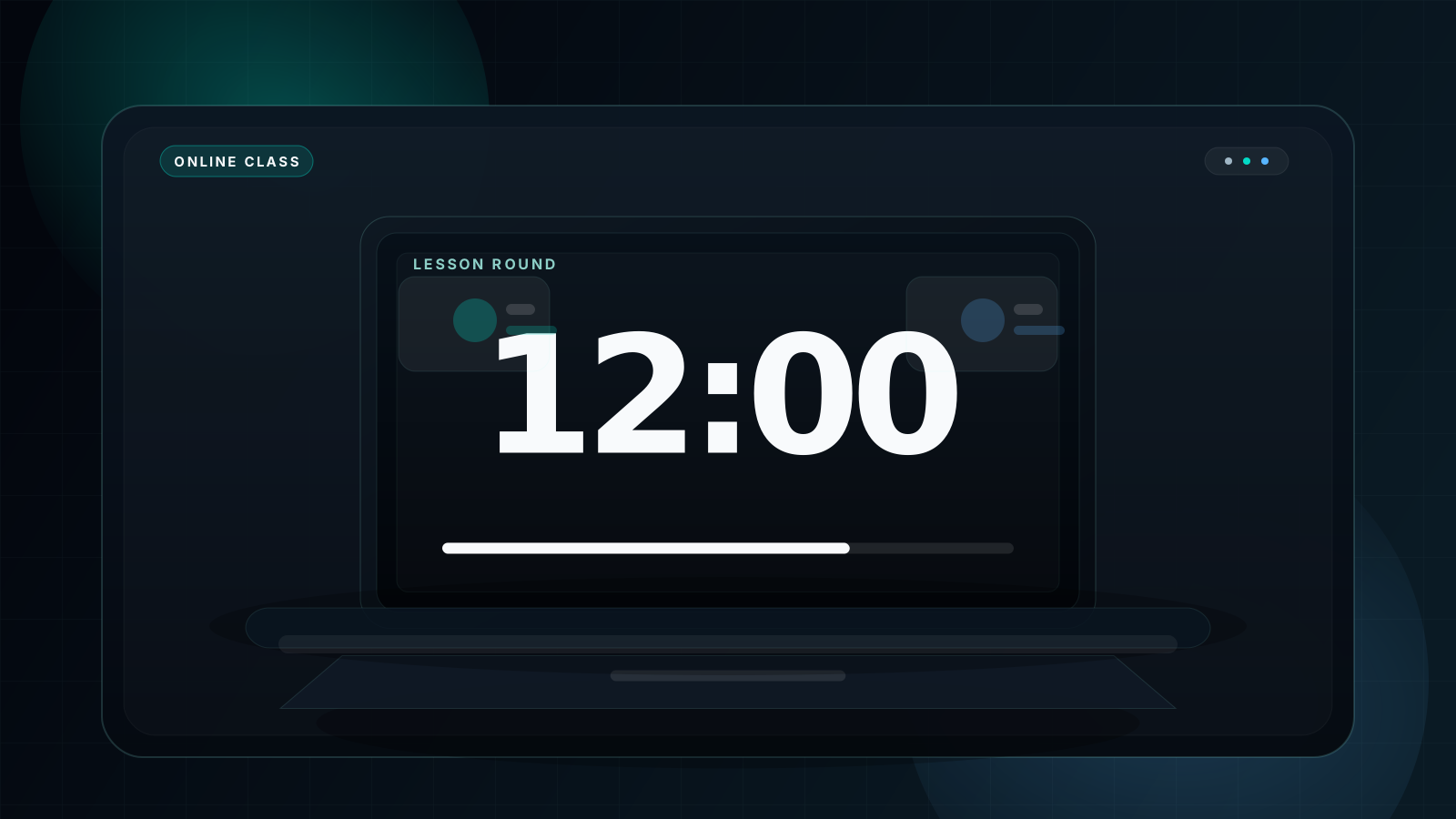
Screen-share one online timer for teachers so remote students follow the same countdown as the physical classroom.
Online classrooms need the same timing clarity
Remote students lose context faster than in-room students because they cannot glance around the room for cues. A shared fullscreen timer fixes that by making the countdown part of the screen itself rather than a teacher-only reference.
That matters during breakout room launches, quiet writing, discussion resets, and exam review windows. If your classroom frequently mixes in-person and remote students, keep the timer on the shared screen and let the bell end the segment for everyone at once.
Setup Guide for Teachers
Theme choice should match the room, not your personal preference. Projectors usually benefit from dark backgrounds, while bright displays may prefer light mode. If you want a more detailed breakdown of when each works best, start with the white vs black screen timer comparison and then apply it to your own classroom. For hybrid teaching, the same online timer for teachers can be screen-shared to remote students without changing tools.
Scenario A: Projector and laptop
- Connect the laptop to your projector with HDMI or your normal wireless display workflow.
- Open the timer in the browser and select Dark theme for the clearest projected result.
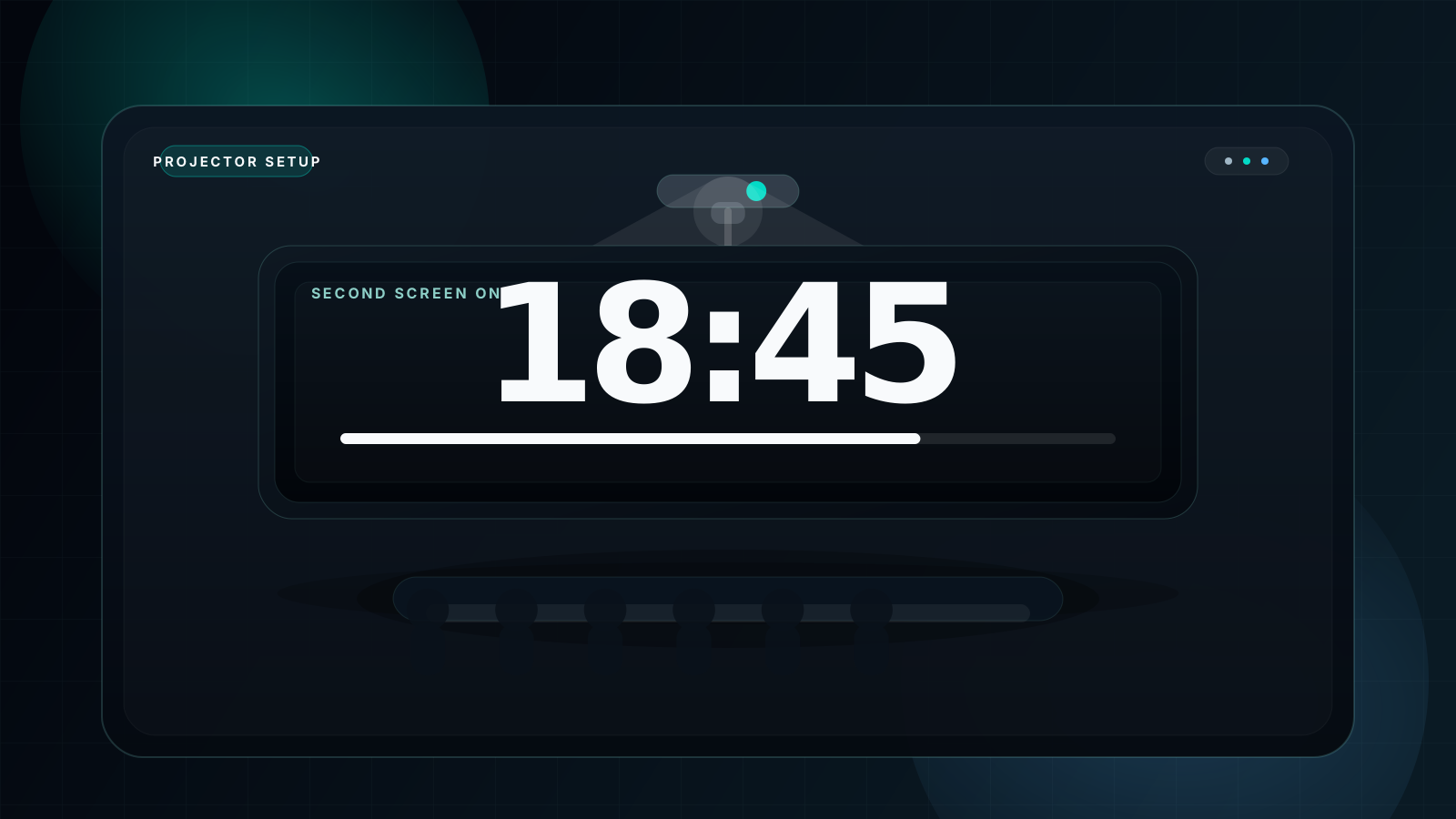
- If you are on Windows, use Win + P to choose Extend or Second screen only before class starts.
- Move the browser window to the projected display if you are using extend mode.
- Press F for fullscreen, then Space to start the countdown.
- Use R between activities so the next timer is ready without touching menus.
Teacher tip: if your laptop supports extended display mode, keep lesson notes on your main screen and put only the timer on the projector.
Scenario B: Smartboard display
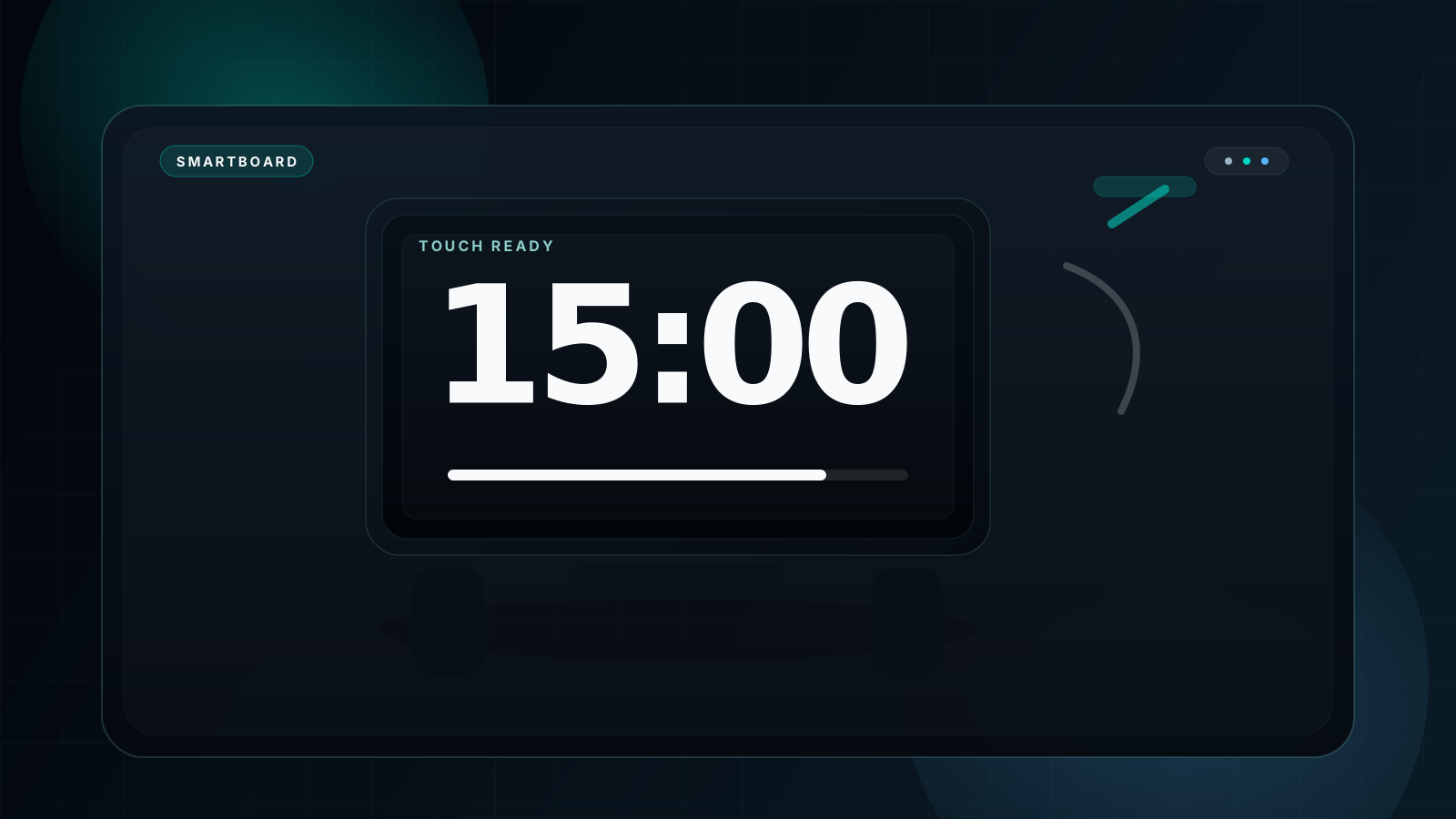
- Open the timer in the smartboard browser or wirelessly cast from the teacher laptop.
- Use Dark theme unless your room is unusually bright and the board favors light UI.
- Tap fullscreen and keep the countdown on screen during stations, timed writing, or review rounds.
- Start, pause, or reset directly from the board if you need touch control during instruction.
- Use the board pen or direct touch instead of walking back to the laptop during the lesson.
Smartboards work best when the timer is treated like a permanent room signal, not a temporary window hidden behind slides.
Scenario C: Tablet classroom setup
- Open the timer in Safari or Chrome on the tablet you already bring to class.
- Mirror to a larger display with HDMI, AirPlay, or your standard casting method if needed.
- Keep the tablet in landscape so the timer uses the widest possible layout.
- Use quick presets for 3, 5, 10, or 20 minute blocks so you do not type durations repeatedly.
- Keep sound on when the timer is not always visible to you during circulation, and use Safari fullscreen gestures on iPad when you want a cleaner display.
Tablets are especially useful in labs, intervention rooms, and stations where the teacher wants a movable timer that still looks deliberate.
Classroom Timer Tips from Experienced Teachers
"I always start the timer before the full instruction finishes. The moment students see the clock moving, they stop treating the task like an optional suggestion."
Try this: preload a 5-minute or 10-minute preset so you can start the timer while you are still framing the task.
"For group work, I usually add two extra minutes. The last visible minutes are the most productive because everyone suddenly locks in."
Try this: use a 7-minute or 10-minute round instead of cutting discussion short the first time.
"Dark theme on the projector is not optional in my room. White backgrounds wash out, but black with white digits stays readable from row eight."
Try this: compare projector readability once with the white vs black screen timer article, then standardize your classroom theme.
"The 3-minute transition timer replaced most of my verbal reminders. Students know that when the timer appears, wrap-up has started."
Try this: keep a recurring 3-minute transition preset and use it at the same points every day so students learn the signal.
Teacher Stories Placeholder
This section is reserved for verified teacher comments and classroom timing workflows. It gives the page a clear place for future E-E-A-T signals without blocking launch now.
How to Use Step-by-Step
- Open fullscreencountdowntimer.com on the teaching device connected to your display.
- Select Dark theme for projector use, or Light theme if the timer lives on a bright classroom monitor.
- Enter the activity length using the time inputs or tap a quick preset.
- Press F to enter fullscreen.
- Press Space to start or pause the countdown.
- Leave sound enabled if you want an audible bell when the activity ends.
- Press R to reset for the next block.
Classroom shortcut card
| Key | Action | Classroom use |
|---|---|---|
| Space | Start or pause | Begin the activity or briefly stop the timer for clarification. |
| F | Toggle fullscreen | Fill the projector or smartboard with the timer. |
| R | Reset | Prepare the next quiz, discussion round, or transition. |
| B | Cycle background mode | Switch quickly between light, dark, and black-friendly display styles. |
| S | Toggle sound | Turn the bell on for transitions or off for silent reading. |
| 1-9 / 0 | Quick minute presets | Launch 1 to 10 minute blocks without typing the time manually. |
FAQ
What is the best fullscreen timer for classrooms?
The best classroom timer is one that launches fast, fills the whole screen, stays readable on projectors, and does not bury the countdown under clutter. That is why many teachers prefer the browser-based fullscreen timer here.
How do I display a fullscreen timer on a classroom projector?
Open the timer on the laptop connected to your projector, set the duration, and press F. If you use extended display mode, move the browser window to the projector first and then go fullscreen.
Can students see the timer clearly from the back of the classroom?
Yes, if the timer uses large digits and strong contrast. Dark backgrounds usually help the most on projected classroom displays because the numbers stay sharp from a distance.
Is there a free classroom timer with no ads?
Yes. This site is built around a clean fullscreen experience, which is exactly what classrooms need when the timer is projected in front of students.
Can I use a fullscreen timer for online classes and Zoom?
Yes. Share the browser tab or your screen in Zoom, Google Meet, or Teams and the whole class can follow the same countdown without extra explanation.
What timer settings work best for classroom activities?
Most teachers use 2 to 3 minutes for transitions, 5 to 10 minutes for discussion rounds, 10 to 20 minutes for reading or quiet work, and 20 to 90 minutes for tests or longer assessments.
Your Classroom Timer Is Ready — Launch in 10 Seconds
No signup. No ads. No distractions. Just open the timer, set the duration, press F, and your whole classroom sees the countdown immediately.