A black screen countdown timer solves a specific problem: many timers are technically functional but visually noisy. For focus work, classroom projection, live events, or meditation, extra controls, colors, and moving widgets often pull attention away from the only thing that matters, the remaining time.
What Is a Black Screen Countdown Timer?
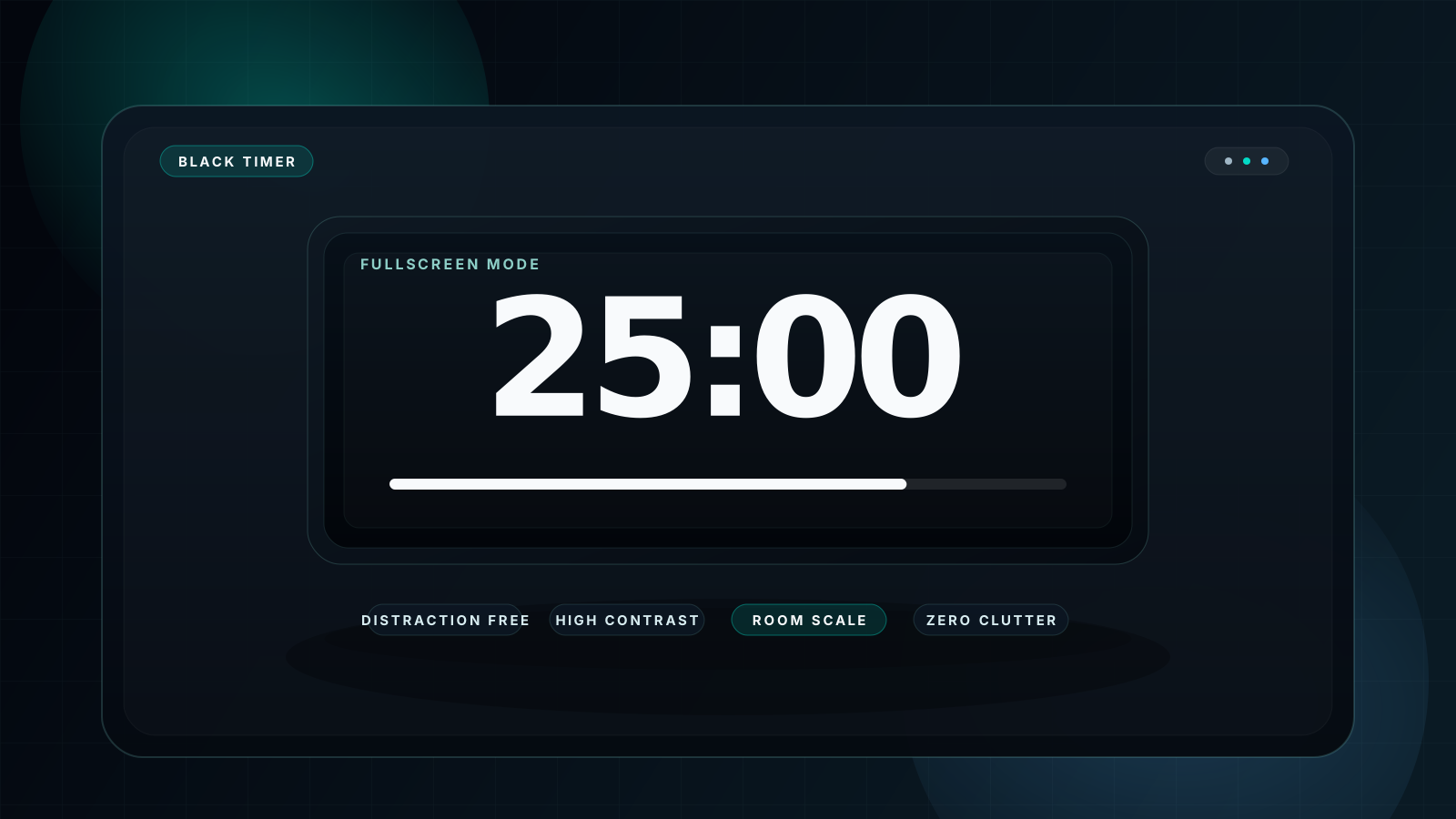
A black screen countdown timer is a timer interface built around a dark or true black background with large, high-contrast digits. Instead of surrounding the countdown with bright panels, dense controls, or decorative graphics, the design keeps the number front and center. That makes it a practical distraction-free timer for environments where clarity matters more than decoration.
Compared with a standard online timer, a black background timer online feels calmer and easier to read from a distance. On a projector, students can see the number without competing color noise. On a work desk, a dark screen timer no distraction setup reduces visual fatigue. On a stage display, the black background visually recedes while the countdown remains sharp. The result is a timer that does less, but does the essential job better.
Why Use a Black Screen?
The strongest reason to use a black screen countdown timer fullscreen is context. In real use, timers are often part of a bigger scene: a teacher at the front of a room, a Pomodoro session on a second monitor, a meditation app mirrored to a TV, or an event operator feeding a countdown to a stage display. In each case, the timer should guide attention without becoming the main source of visual noise.
Classroom teaching
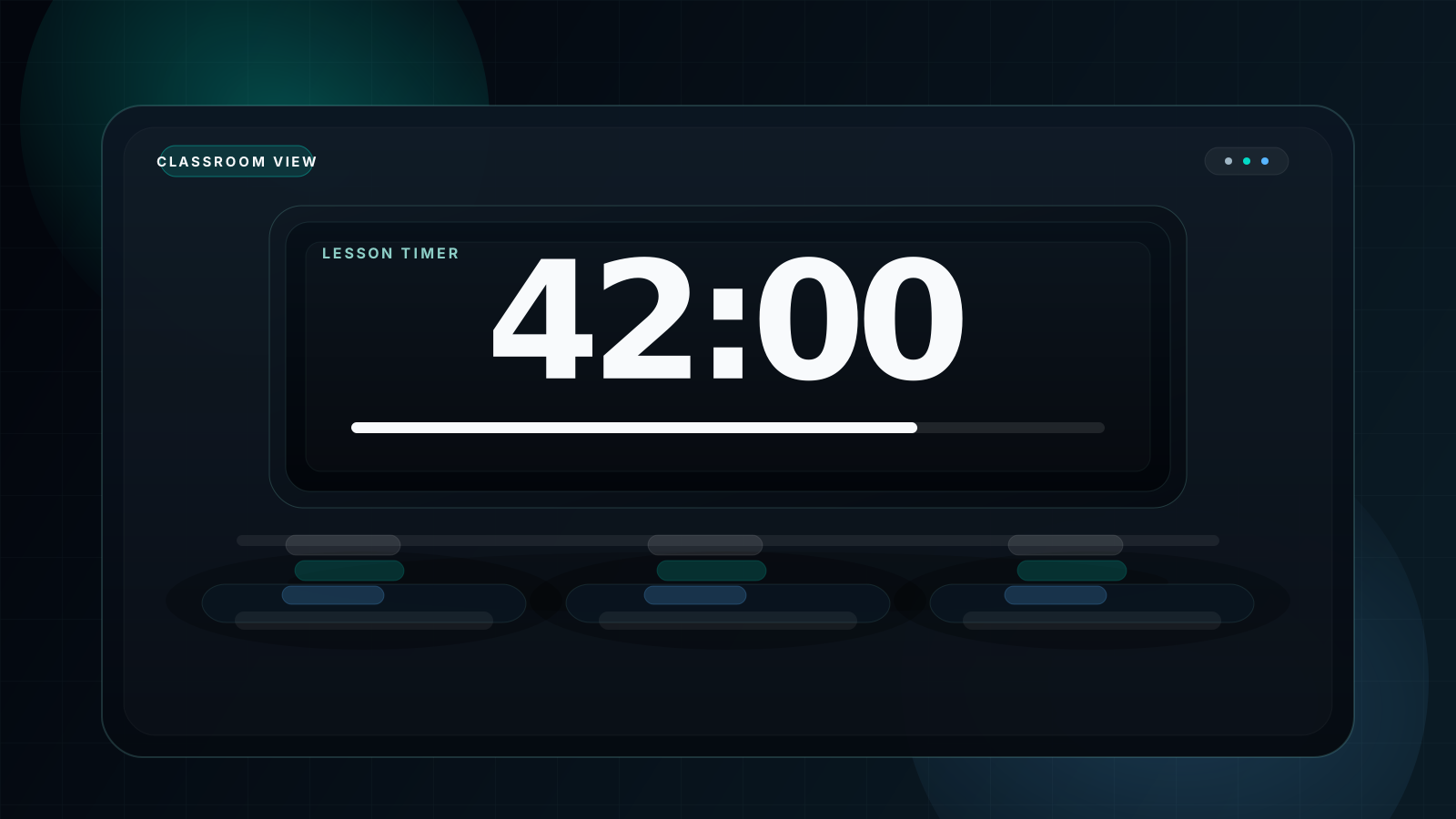
A black screen timer for classroom use stays readable on projectors, helps students track transitions, and avoids distracting icons or bright gradients in the middle of teaching.
Meditation and focus
A dark screen timer no distraction setup removes visual clutter, which is especially useful for breathing practice, silent work, and guided reflection.
Pomodoro sessions
A black screen Pomodoro timer keeps the countdown visible while lowering screen glare during 25 minute focus blocks and short recovery breaks.
AMOLED battery savings
On AMOLED devices, black pixels are dimmed or off, so a true black timer can be more power-efficient than a bright interface, especially during long sessions.
Presentations and events
A fullscreen black timer keeps the room looking polished. White numerals over black remain legible at a distance and integrate cleanly with stage lighting or slide decks.
If you regularly switch between use cases, it also helps to keep related resources close at hand. Our Pomodoro Timer Guide, Fullscreen Timer for Classroom, and Dark Theme Countdown Pages cluster cover the most common black-screen workflows.
How to Use a Black Screen Countdown Timer
- Open the timer and enter your duration. For quick setup, choose a preset such as 5 minutes, 10 minutes, or 25 minutes if you are using a black screen Pomodoro timer workflow.
- Choose a dark appearance. In the main tool, the theme selector lets you switch to Black or Dark, depending on whether you want a true black surface or a softer dim background.
- Press F or use the Fullscreen button to expand the timer. This removes browser clutter and turns the screen into a dedicated countdown display for the room.
- Press Space to start or pause. The keyboard shortcut matters in live use because it is faster than hunting for buttons while teaching, speaking, or guiding a session.
- When the timer ends, let the sound alert handle the transition. That gives you an audible cue without forcing everyone to watch the screen constantly.
Tip: for a projector, test black versus dark before the session starts. True black is usually best for contrast, while soft dark can help if the room lighting makes pure black feel too harsh.
Use Case Deep Dives
Classroom Black Screen Timer
Teachers often need a timer that is visible, fast to adjust, and calm enough to leave on screen for long stretches. A classroom black screen timer fits that use case because the projection remains clear even when ambient light changes. The black background reduces unnecessary glow around the timer, while large white numerals keep the deadline obvious for independent work, quizzes, transitions, and station rotations.
The practical advantage is behavioral, not just visual. Students can self-regulate better when the time remaining is obvious. That means fewer interruptions, fewer repeated time checks, and smoother transitions between activities. If your main need is teaching-specific workflow, the dedicated Fullscreen Timer for Classroom guide goes deeper into setup tips, seating visibility, and projector placement.
Pomodoro Black Screen Timer
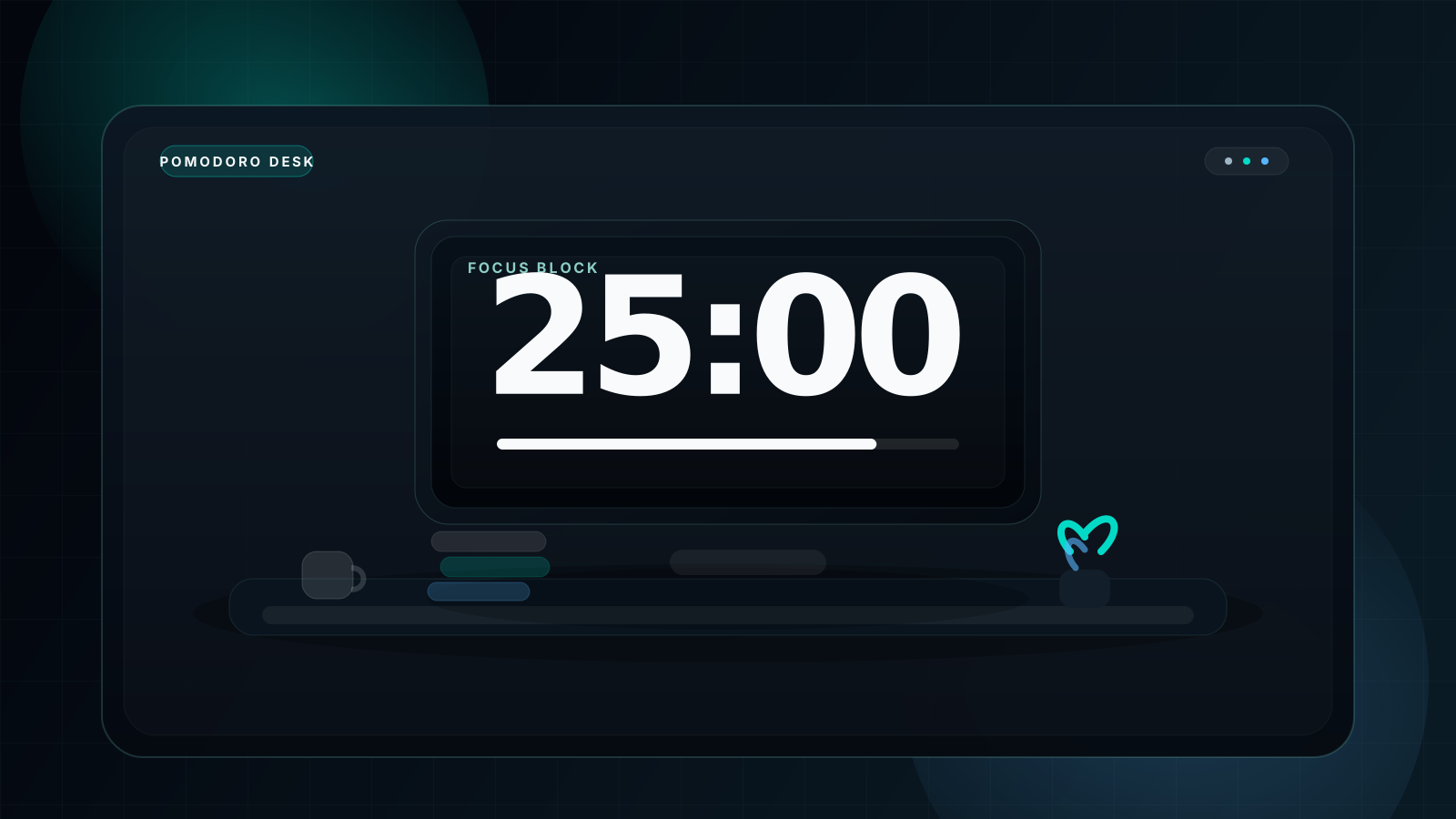
Pomodoro sessions succeed when the timer is visible enough to create urgency but quiet enough to avoid stealing focus. That balance is exactly why many people prefer a black screen countdown timer fullscreen for 25 and 5 minute cycles. Instead of a bright app window, the timer becomes a low-noise visual anchor on a laptop, external monitor, or tablet stand.
The best setup is simple: choose 25 minutes, switch to black or dark theme, fullscreen the timer, and place it just outside your main working surface. You still see the passing time, but the timer does not compete with the document, code editor, or reading material in front of you. If you build your day around structured work sprints, read the full Pomodoro Timer Guide for block design, break pacing, and focus-specific workflow ideas.
Meditation and Breathing Timer
Meditation timers benefit from quiet design even more than work timers do. During breath work, silent sitting, or guided mindfulness, bright interface chrome can feel intrusive. A black background timer online gives you only the information you need: how much time remains. Everything else fades into the background.
In practice, that means you can mirror a black screen timer to a TV, keep it on a low-brightness tablet, or run it fullscreen on a monitor in a studio space. The timer stays readable if someone needs reassurance about how long is left, but it never dominates the room. That is why many meditation and breathing setups pair best with the broader set of curated themes in our Dark Theme Countdown Pages cluster, especially when you want a softer dark mode instead of a pure black finish.
FAQ
What is a black screen countdown timer?
It is a countdown timer designed around a dark or true black background with large readable digits, usually used in fullscreen so the number is visible without other interface distractions.
Why use a black background for a countdown timer?
Because it removes visual noise. The screen feels calmer, the countdown is easier to read from a distance, and the timer works better for classrooms, stages, meditation, and focus work.
Is a black screen timer good for AMOLED displays?
Yes. On OLED and AMOLED panels, black pixels emit far less light, so a true black timer can reduce power usage and screen glare during long sessions.
Can I use a black screen timer in a classroom?
Yes. It is one of the strongest classroom timer formats because the projected number remains clear while the rest of the display stays visually quiet.
Does a black screen timer save battery?
On OLED and AMOLED devices, often yes. On LCD screens the battery impact is smaller, but the simplicity still makes the timer easier on the eyes.
What's the best free black screen countdown timer online?
The best option is a tool with true black mode, fullscreen support, large digits, sound alerts, and keyboard shortcuts. You can start the timer now on the main tool page or open the dedicated fullscreen timer version.
Start a Distraction-Free Countdown
If your goal is simple, do not overbuild the screen. Open the timer, switch to black mode, go fullscreen, and let the countdown handle the room.