Searching for a large countdown clock display usually means the timer itself is no longer the hard part. The hard part is deployment: choosing the right screen, choosing the right display mode, and making sure the digits actually reach maximum size on that screen. A free large countdown clock display is only useful if the output chain is correct.
What Makes a "Large Countdown Clock Display"?
The word display changes the job definition. This is no longer just about running a countdown. It is about delivering the countdown to a public-facing screen where everyone can read it with no explanation.
Definition
A large countdown clock display is a fullscreen countdown timer configured to output maximum-size digits on an external or large-format display device, including projectors, TVs, LED walls, smartboards, and multi-screen setups.
A timer that scales cleanly in fullscreen without ads or interface clutter.
A projector, TV, LED wall, smartboard, or monitor sized for the room depth.
The correct connection, display mode, theme, and sleep policy so the digits stay visible.
Layer 1
The screen
Display type determines brightness, native resolution, connection method, and physical viewing distance. Projector, TV, LED, and smartboard all behave differently.
Layer 2
The mode
Fullscreen, mirror, extend, or second-screen-only modes decide whether the timer uses the display well or wastes half the available space.
Layer 3
The optimization
Theme contrast, sleep settings, notification suppression, and brightness tuning are what make a deployment feel reliable in a live room.
If you want the less technical, more public-facing framing of the same topic, start with countdown clock large. This page is the technician's version of that search.
Display Size vs Digit Size: The Key Distinction
A big screen only raises the ceiling. It does not automatically create big digits. The digits reach their true size only when the timer is on the target display and actually in fullscreen.
Common failure
Large screen, small window
An 85-inch display with a browser window in the middle still produces a small timer. The room sees the bezel size, not the digit size.
Typical result: 5 to 8 centimeter numerals, unreadable from the back row.
85-inch TV + browser window + visible tabs = wasted screen area
Correct deployment
Large screen, fullscreen output
Move the browser to the audience display, press F, and let the timer occupy the full canvas. This is what turns screen size into readable numeral size.
Typical result: 40 to 80 centimeter numerals on projector-scale outputs.
Target display + fullscreen timer + high-contrast theme = usable room display
Practical sizing rule
Digit height = screen height × 0.65
| Screen | Approx. screen height | Fullscreen digit height | Practical viewing distance |
|---|---|---|---|
| 32-inch monitor | 40 cm | 26 cm | Up to 8 m |
| 55-inch TV | 69 cm | 45 cm | Up to 14 m |
| 75-inch TV | 94 cm | 61 cm | Up to 19 m |
| 100-inch projector | 125 cm | 81 cm | Up to 25 m |
| 150-inch projection | 187 cm | 122 cm | Up to 38 m |
If you want the broader visibility-first version of this argument, the big countdown timer article explains the human side of why shared timers need physical size. The companion large countdown timer guide shifts from theory into professional venue scenarios.
5 Display Types and How to Use Each
Most setups fall into one of five hardware patterns. Once you identify the right pattern, the countdown part is straightforward.
Display type 1
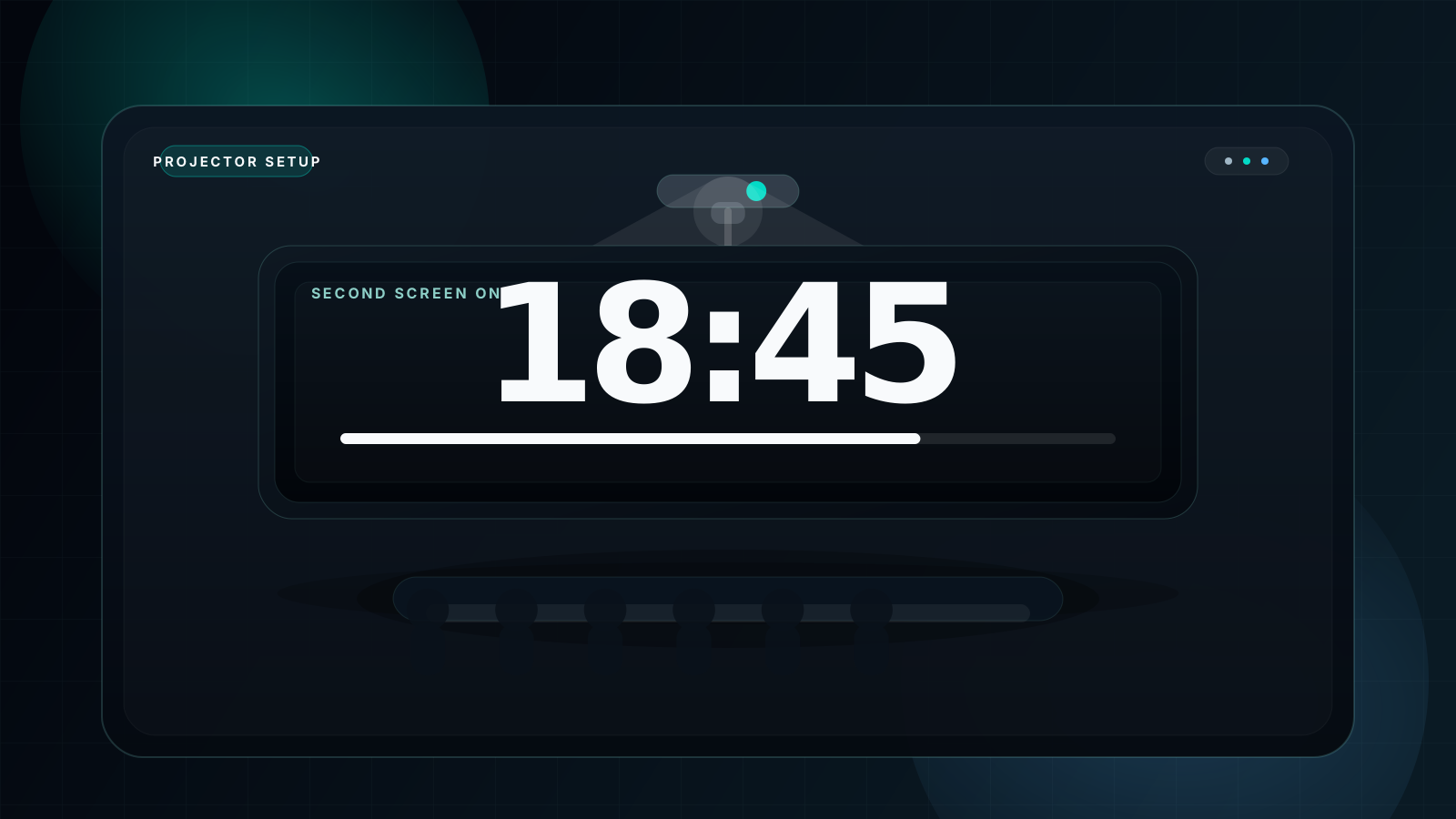
Projector
Best for: classrooms, conference rooms, lecture halls, and auditoriums.
Connection: HDMI first. Wireless only when you can tolerate delay.
Setup: Use Win + P and choose second-screen-only, then run the timer in Dark theme. For projector contrast rules, pair this with dark mode countdown timer.
Display type 2
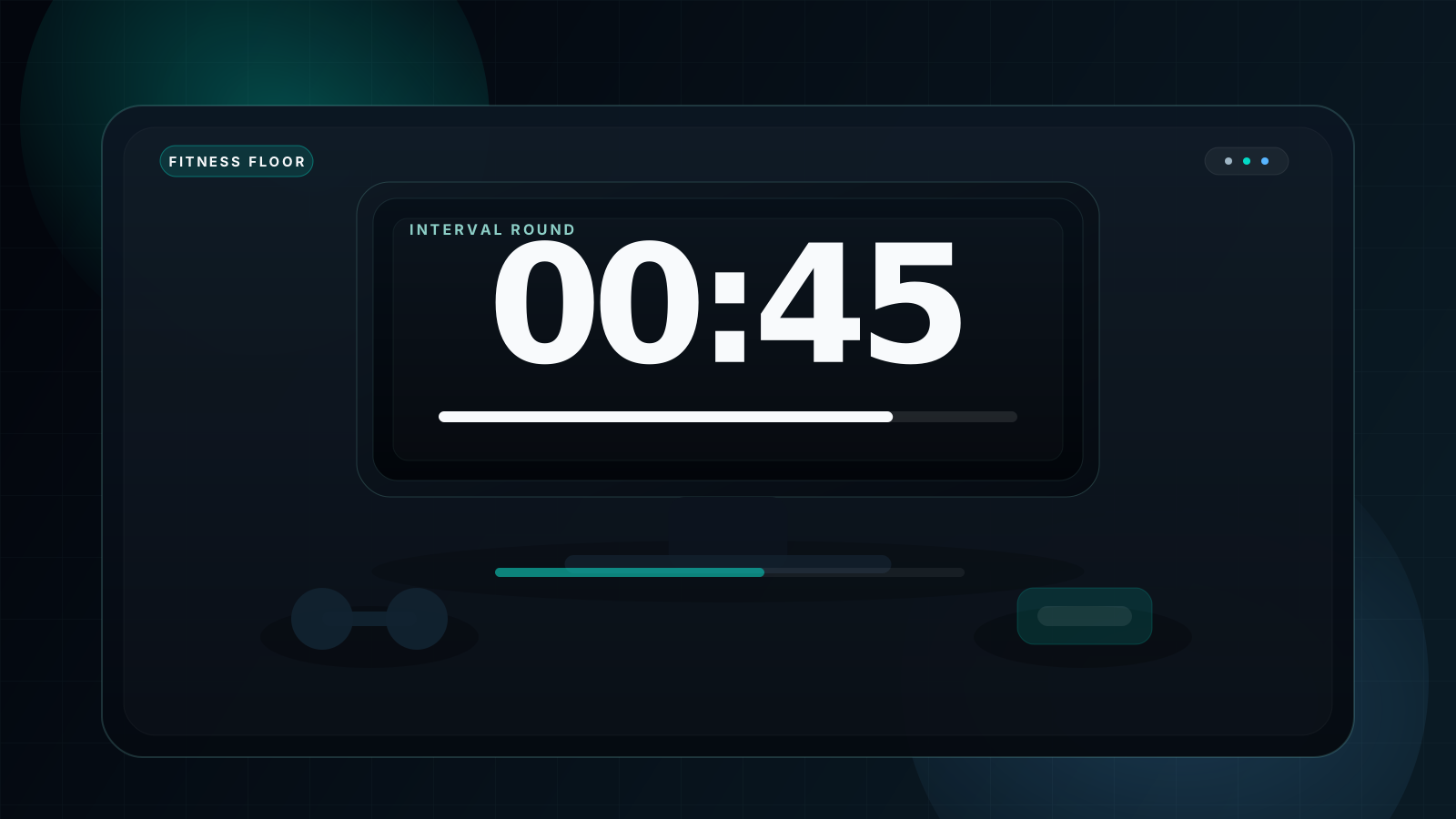
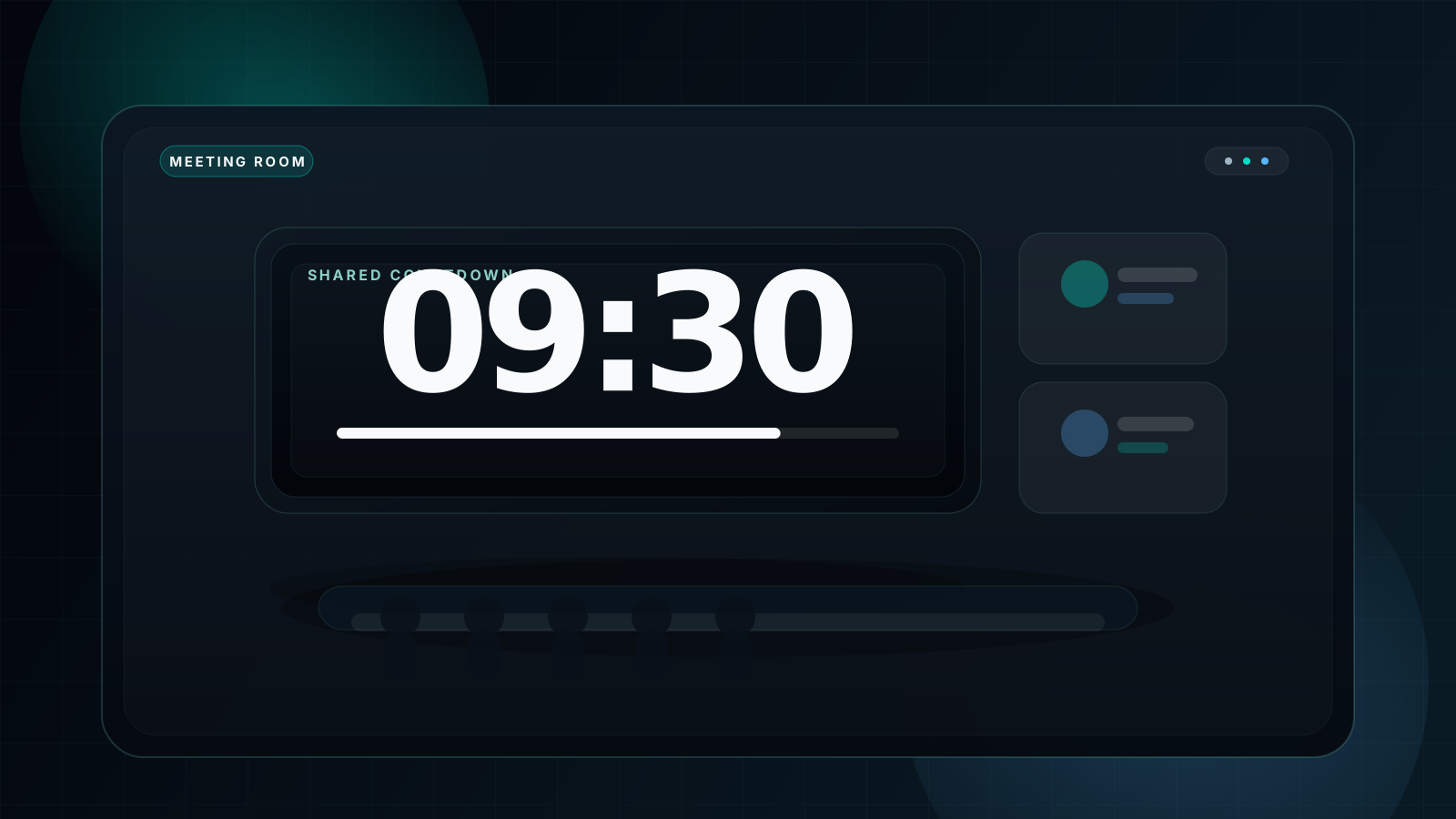
Large TV
Best for: meeting rooms, gyms, waiting rooms, homes, and small event floors.
Connection: HDMI, AirPlay, Chromecast, or built-in browser.
Setup: TVs are forgiving, but fullscreen still matters. Use the same Dark theme logic as projectors unless bright ambient light starts to wash the screen.
Display type 3
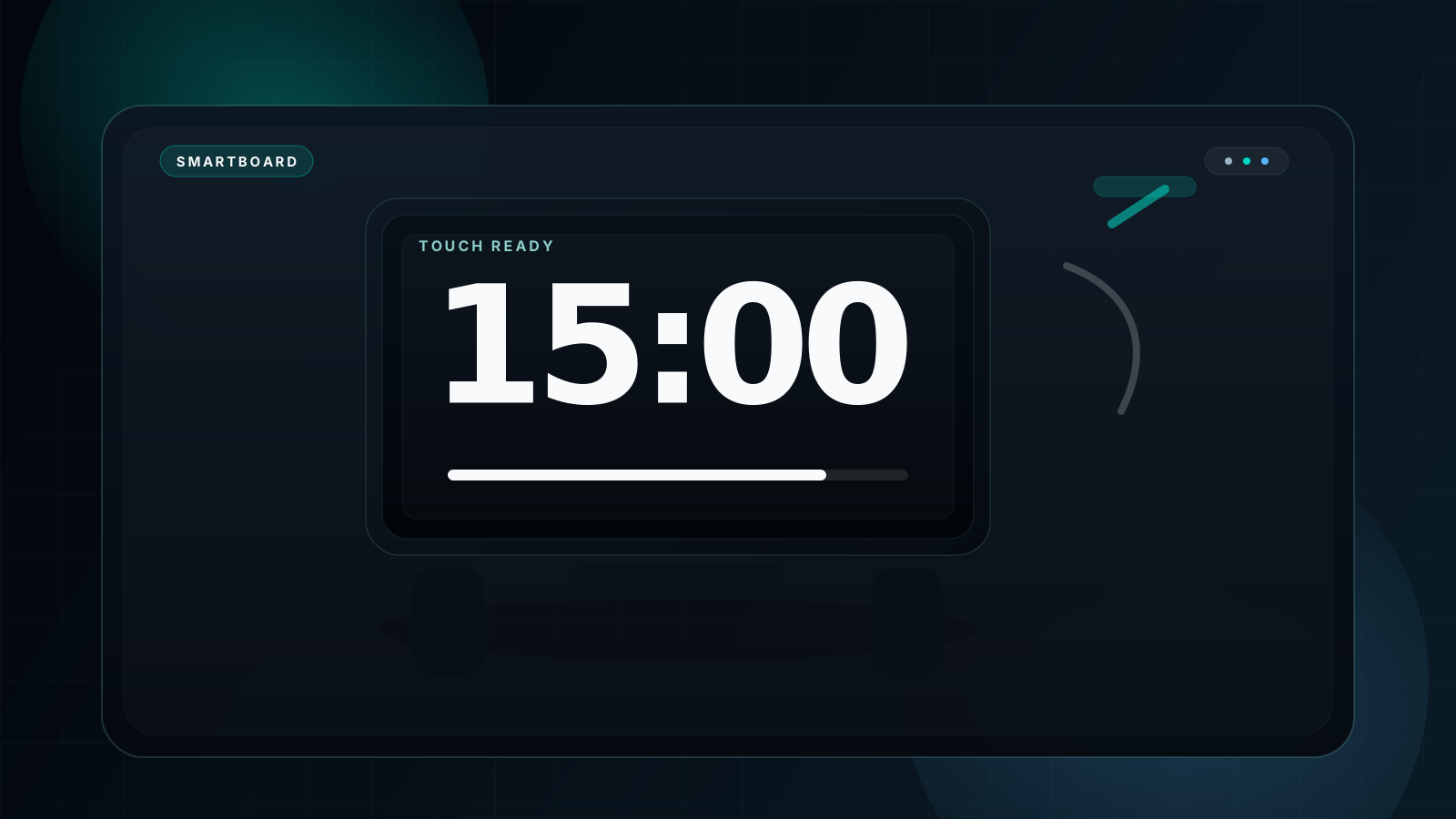
Smartboard
Best for: K-12 classrooms, training rooms, and collaborative workshops.
Connection: Built-in browser or mirrored laptop.
Setup: Smartboards are the easiest zero-hardware path. Open the timer locally, press fullscreen, and use touch controls. The classroom-specific walkthrough lives in fullscreen timer for classroom.
Display type 4
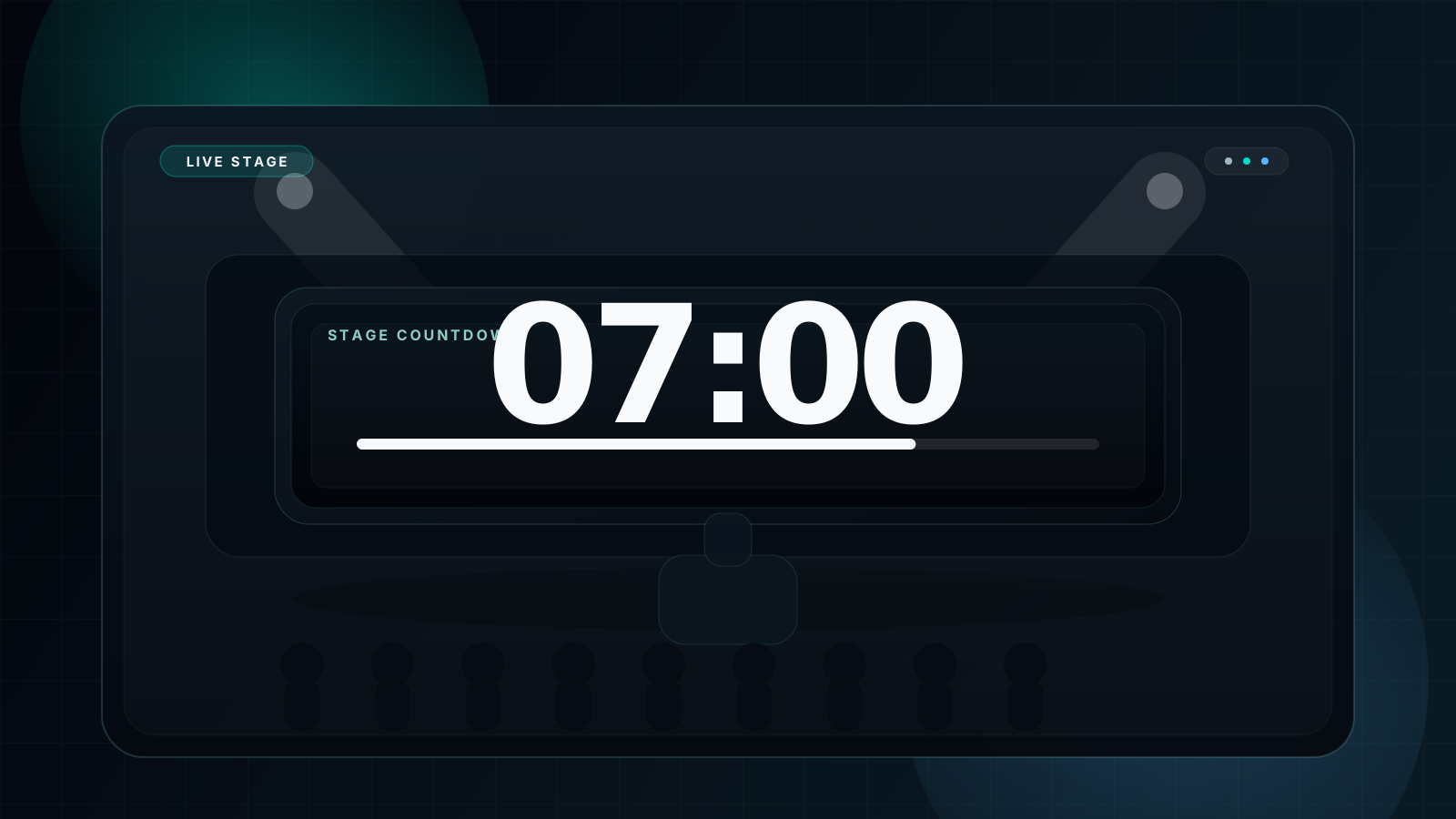
LED wall
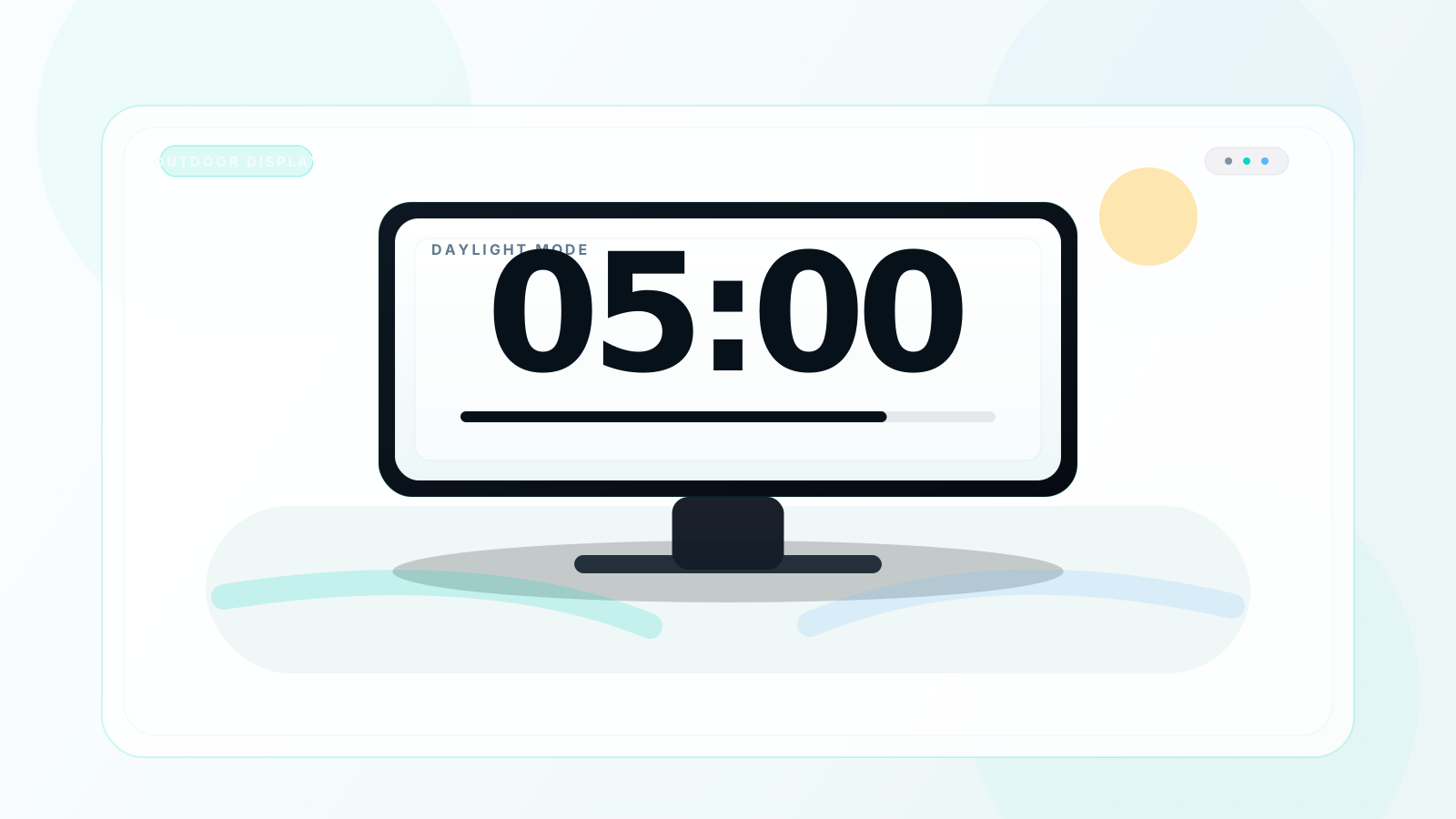
Best for: stage shows, trade booths, outdoor events, and large audience rooms.
Connection: HDMI feed into the LED controller or AV processor.
Setup: Match the controller resolution exactly. In bright sunlight, Light theme often wins. Use the white vs black screen timer guide if you need to choose under mixed lighting.
Display type 5
Dual monitor rig
Best for: presenters who need notes on one screen and a fullscreen timer on another.
Connection: HDMI or DisplayPort in extend mode.
Setup: Drag the timer window to the audience display first, then press F. This is one of the most common event workflows in the large countdown timer use cases.
Complete Device Configuration Matrix
When multiple operators or rooms are involved, standardization matters more than creativity. Use a matrix so everyone deploys the timer the same way every time.
| Display device | Connection | OS mode | Recommended theme | Fullscreen method | Sleep policy | Typical room size |
|---|---|---|---|---|---|---|
| 80-inch projector | HDMI | Second screen only | Dark | F | Never sleep | 10 to 80 people |
| 120-inch projector | HDMI | Second screen only | Dark | F | Never sleep | 50 to 200 people |
| 65-inch TV | HDMI or AirPlay | Mirror or Extend | Dark | F | Never sleep | 5 to 20 people |
| 85-inch TV | HDMI or AirPlay | Mirror or Extend | Dark | F | Never sleep | 10 to 40 people |
| Smartboard | Built-in browser | No extra mode | Dark | Touch fullscreen button | Board stays awake | 10 to 40 people |
| LED wall | AV processor | Matched output | Light or Dark | F | Controller stays awake | 100+ people |
| Dual-screen secondary display | HDMI or DisplayPort | Extend | Dark | F on audience screen | Never sleep | 5 to 50 people |
| iPad landscape output | AirPlay | Screen mirror | Dark or Light | Fullscreen button | Auto-lock disabled | 1 to 5 people |
Windows quick setup
Win + P -> Choose Second screen only or Extend
Settings -> System -> Power and battery -> Screen and sleep -> Never
Move browser to target display
Press F for fullscreen
macOS quick setup
System Settings -> Displays -> Mirror or Arrange
System Settings -> Lock Screen -> Turn display off -> Never
Put the browser on the target display
Press F for fullscreen
iPadOS quick setup
Control Center -> Screen Mirroring -> Select Apple TV
Settings -> Display and Brightness -> Auto-Lock -> Never
Open timer in Safari
Tap fullscreen button
Interactive configuration guide
3-step display configuration wizard
Choose the target display, room scale, and lighting conditions. The generator below produces a practical deployment recommendation you can hand to an operator or AV technician.
Medium indoor projector rooms are the default case: use HDMI, second-screen-only mode, Dark theme, and a preflight sleep test before the audience enters.
Troubleshooting Display Issues
Large-display timing problems are usually deployment problems, not timer problems. Fix the output chain first.
1. The countdown looks small on the large screen
Cause: The browser is still running in a normal window or on the wrong monitor.
Fix: Move the browser to the audience display, then press F. Do not stop at maximize. Window chrome still steals usable digit height.
2. The screen goes to sleep during the countdown
Cause: Default power management still treats the machine like a personal laptop.
Fix: Set screen sleep to Never or enable presentation mode before the session. Restore the old value after the event if needed.
3. Projector colors look yellow, gray, or washed out
Cause: Projector brightness, lamp age, or color mode is reducing contrast.
Fix: Switch to Dark theme first. Black backgrounds survive imperfect projection better than light backgrounds, which is why indoor projection usually pairs best with dark mode countdown timer logic.
4. Notifications cover the digits in fullscreen
Cause: Do Not Disturb or Focus mode was never enabled.
Fix: Disable nonessential notifications before the session starts. A countdown display is a public surface, so every pop-up becomes audience-visible.
5. The timer fullscreen opens on the operator screen instead of the audience screen
Cause: Fullscreen attaches to the window's current monitor.
Fix: Drag the browser window to the audience display first. Only then press F. In dual-monitor workflows, this is the most common avoidable operator mistake.
6. Wireless casting adds delay or stutter
Cause: AirPlay, Chromecast, and similar protocols add transmission latency.
Fix: Use HDMI for anything stage-facing or time-critical. Wireless casting is acceptable for classrooms and casual rooms, but it is not the default for professional rooms.
Advanced Display Tips for Professionals
Once the basic deployment works, a few small upgrades make the system feel much more robust under live pressure.
Tip 1
Use one source when multiple screens must match exactly
If the room has multiple audience displays, the cleanest path is one browser instance feeding an HDMI splitter or AV processor. That avoids start-time drift between independent devices.
Tip 2
4K helps sharpness, not size
4K displays improve edge definition, but the visible size still comes from physical screen height and fullscreen mode. Use 4K when clarity matters, not as a substitute for a larger display.
Tip 3
Keep a hot backup on a second machine
For high-stakes events, open the same countdown on a spare laptop with the same duration loaded. If the primary machine fails, switch the HDMI source instead of rebuilding the timer under pressure.
Tip 4
Kiosk mode removes accidental UI exposure
If the machine exists only to run the timer, kiosk mode prevents random tabs, dock panels, and browser chrome from appearing during the event.
Chrome kiosk launch
chrome.exe --kiosk https://fullscreencountdowntimer.com
open -a "Google Chrome" --args --kiosk https://fullscreencountdowntimer.com
60-second preflight checklist
1. Confirm target display receives the correct signal
2. Press F and verify fullscreen on the audience screen
3. Disable sleep and notifications
4. Test Dark versus Light if ambient light is strong
5. Start a 10-second trial and confirm visibility from the back row
FAQ
How do I display a large countdown clock on a projector?
Connect the laptop to the projector, move the browser to that output, choose Dark theme, and press F for fullscreen. That is the simplest stable projector workflow.
Can I show a large countdown clock on two screens at once?
Yes. For casual use, open the timer in two browser windows. For tighter synchronization, duplicate one video source with an HDMI splitter or through the venue's AV processor.
What resolution is best for a large countdown clock display?
1080p is enough for most rooms. Use 4K when the display hardware already supports it and you want cleaner edges on very large screens.
Why does my countdown clock look small on my large screen?
The timer is probably not in fullscreen or not on the correct display. Move the browser to the target screen and press F.
How do I prevent my screen from going to sleep during a countdown display?
Set screen sleep to Never or presentation mode before the session starts. This matters on both laptops and tablets used as signal sources.
Can I use a large countdown clock display on a smartboard?
Yes. Smartboards work well because the timer can run directly in the built-in browser and be controlled by touch, without an external keyboard.
Your Large Countdown Clock Display — Ready in 30 Seconds
No software to install. No configuration files to tune. No AV degree required. Open the link, connect the screen, press fullscreen, and let the display do its job.